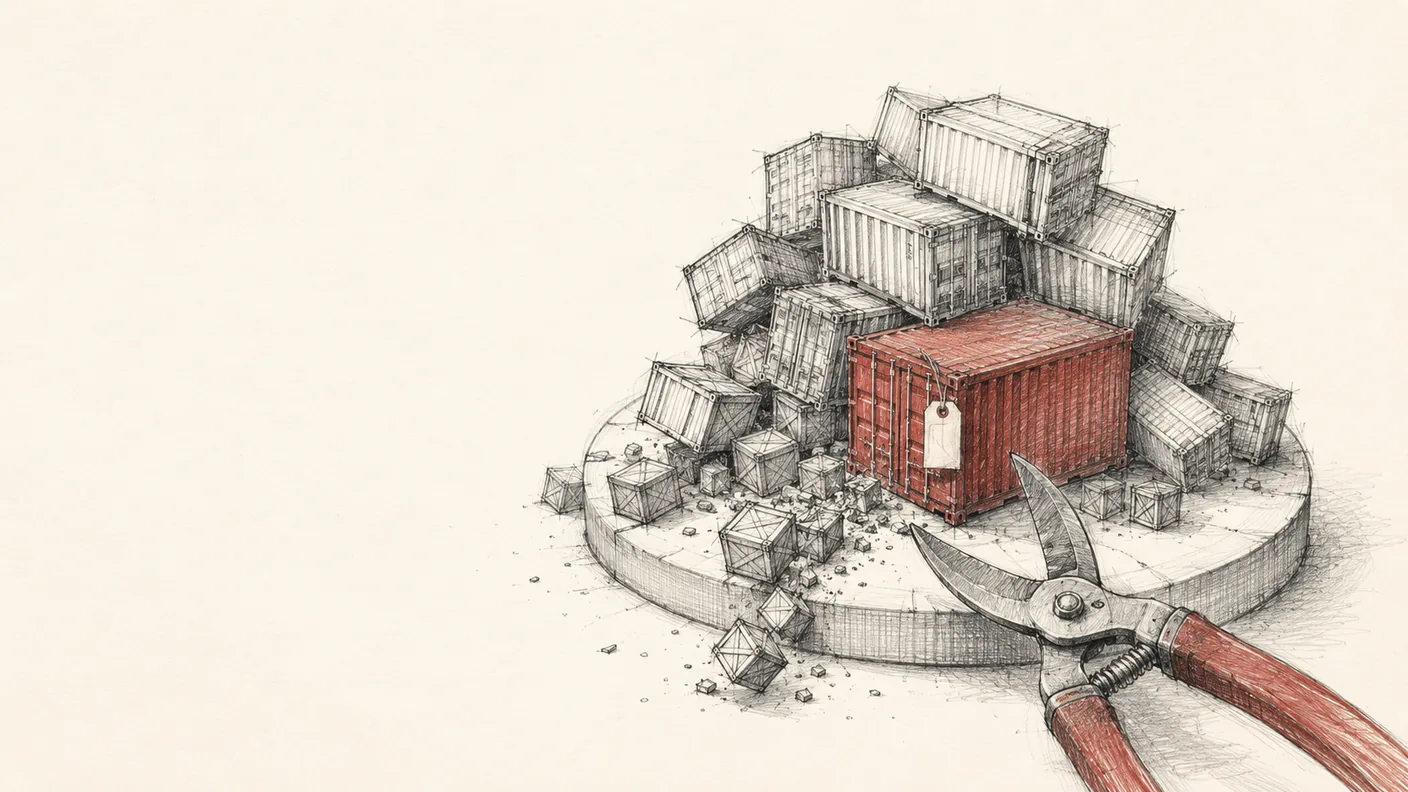
Why docker image prune Won’t Fix a Full Root Disk: The Containerd Snapshotter Trap
In shortRoot on my home server hit 99 percent with 2.1 GB free, and docker image prune freed nothing because it only deletes untagged images. Sixteen rollback tags for one service are tagged by definition. I had moved Docker’s data-root to NVMe back in May, but image layers live under /var/lib/containerd on containerd’s own root setting, so 56 GB never went anywhere. Trimming tags got root to 89 percent, and relocating the store finished at 39 percent with 67 GB free.
If your root disk is full and docker image prune did nothing, here are four things I wish I had known an hour earlier:
1. Check every host and every mount, not just the box you’re on. Run df -h everywhere before you touch a single file. 2. **When du reports far less than df, the missing gigabytes are in directories your user account cannot read. A folder that says “4.0K” but should be huge means “permission denied,” not “empty.” 3. docker image prune only deletes dangling (untagged) images.** Your :rollback-2026-06-10 tags are tagged by definition, so prune skips them. 4. Even after you prune correctly, the store can be sitting on the wrong disk. Modern Docker keeps image layers in /var/lib/containerd (the containerd snapshotter), and Docker’s data-root setting doesn’t relocate that store. The pile-up and the wrong-disk are two separate bugs with two separate fixes.
That last one is the containerd trap, and it is patient. I moved Docker to a bigger disk back in May; the 56 gigabytes of image layers stayed exactly where they were, on the small root disk, and the shortfall only showed up when root hit 99%. The whole rescue started from one message: “/ is running out of space again, do we have a disk space tool?” What followed was a 99%-to-39% recovery in three parts. Every number here comes straight off the box.
The full disk was on a different host
My setup is two machines: a small DigitalOcean droplet where my agent runs, and a home server called ubuntu1, a Dell Precision workstation running a couple dozen Docker containers (network video recorder, Home Assistant, Zigbee coordinator, a local large language model, a log stack). Everything on it does real work, so root at 99% was a real problem.
The obvious first move is to check the box you are on. I did:
Filesystem      Size  Used Avail Use% Mounted on
/dev/vda1       309G   79G  231G  26% /
26%, nowhere near full. The “disk full” report was real, but it was about the other machine. “The disk is full” is a claim about one filesystem on one host, so df -h every host and every mount before you clean anything. On the actual culprit:
/dev/mapper/ubuntu--vg-ubuntu--lv  115G  107G  2.1G  99% /
/dev/nvme0n1p1                     234G  125G   98G  57% /mnt/nvme
/dev/sdb1                          1.8T   98G  1.7T   6% /mnt/passport
Root at 99%, 2.1GB free, while a fast NVMe sat 98GB-empty and a 1.8TB external drive sat 1.7TB-empty right next to it. Adding disk was not the fix; the data was on the wrong drive.
77GB only root could see
I was connected as the pi user, which has neither root nor Docker access on this box. So I added up everything pi was allowed to read:
30G   /        <-- everything the unprivileged user can see
13G   /usr
13G   /home/pi
...
Thirty gigabytes. But df said 107GB used. Where were the other 77GB?
When du (which sums only what you are allowed to read) lands far below df (which measures the whole filesystem), the difference is the answer: it is all in directories your user can’t descend into. The clearest signal was du reporting /var/lib/docker as 4.0K, absurd for a box running 30 containers. That “4.0K” is not “empty,” it is “permission denied past the top directory.”
A single du run as root showed where the space went:
56G    /var/lib/containerd        <-- more than half the disk
25G    /home
13G    /usr
9.1G   /root/trash/claude-sidecar  (retired model files, already in a trash dir)
2.1G /var/log/journal**/var/lib/containerd at 56GB, more than half the disk on its own.**
The trap: data-root does not move the containerd store
Two terms have to be precise here. Docker is the friendly front-end; under the hood it drives containerd, the runtime that actually pulls, stores, and unpacks images. An image is the frozen template (like an installer ISO); a container is a running instance of one. Images are where the disk goes, so the 56GB was images, not anything running.
Back in May I moved Docker’s data-root to the NVMe to fix an unrelated reboot bug, and daemon.json agreed with me:
{ "data-root": "/mnt/nvme/docker-data", ... }But modern Docker uses the containerd image store (the snapshotter), and that store does not live under data-root. It lives at **/var/lib/containerd** on the root disk, governed by containerd’s own root setting, which I had never touched. So the May migration moved Docker’s volumes and container metadata and left every image layer exactly where it was, on the small disk, where it kept growing for another two months. (The containerd store became the default in Docker Engine 29; if you upgraded from an older version instead of installing fresh, you may still be on the classic overlay2 store and never hit this.)
“Moving Docker to a bigger disk” is two moves, and most guides only cover the first. If du -sh /var/lib/containerd comes back large and you think you already moved Docker, you finished half the job.
Sixteen rollback tags for one service
That left the question of why the image store was 56GB in the first place. I listed the images:
docker.io/library/ilp-router:latest
docker.io/library/ilp-router:rollback
docker.io/library/ilp-router:rollback-2026-06-10
docker.io/library/ilp-router:rollback-20260529T074208Z
docker.io/library/ilp-router:rollback-pre-gemma-20260614
docker.io/library/ilp-router:rollback-pre-35b-20260621
... (16 rollback tags for one service, plus more)
Sixteen rollback images for a single service, each a multi-gigabyte CUDA-based image. Deploy tooling commonly tags the outgoing image as :rollback-<timestamp> before each release so you can revert to it in seconds; the tags accumulate because nothing trims them.
That is why they survived every cleanup I had run. Plain docker image prune only removes dangling images, meaning untagged layers with no name pointing at them. A rollback tag is a tag, so plain prune skips it. The obvious next move, docker image prune -a, does delete unused tagged images and would have cleared the rollbacks, but -a is too broad: it removes every image not tied to a running container, including the recent rollback tags I keep on purpose as revert insurance. Any deploy scheme that tags images (:rollback-*, :backup-*, :v123) is a slow disk leak unless it also trims on a schedule, explicitly and by name.
The fix, in tiers
The data is not all the same, so I matched each piece to a storage tier: hot, regenerable scratch (Docker images, build cache, model files) on the fast NVMe, cold bulk (recordings, archives, trash) on the big external HDD, and delete for the genuinely disposable.
Step 1: delete the tagged rollback images docker image prune can’t touch
Keep the newest 2 rollback tags per service, enough to revert a bad deploy, and remove the rest. Target tagged images by name, since plain docker image prune will not touch them and -a would take the two you want to keep:
# keep the 2 newest :rollback-* tags, delete the older ones.
# sort on the image's real creation time, not the tag string, because the
# tag timestamps come in several formats that do not sort cleanly:
docker images --format '{{.CreatedAt}}\t{{.Repository}}:{{.Tag}}' \
  | grep ':rollback-' | sort -r | cut -f2 | tail -n +3 \
  | xargs -r docker rmi
This step alone took root from 99% to 89%, enough room to make the real fix carefully.
Step 2: relocate the containerd root to NVMe (the move data-root never made)
The real fix was moving /var/lib/containerd off the small root disk onto the NVMe, finishing the half-move from May: repoint containerd’s root at /mnt/nvme/containerd, copy the data with its metadata preserved, then restart and verify.
# stop the stack first, then copy the store preserving hardlinks + xattrs
# (overlay snapshots need exact metadata or they break):
rsync -aHAX /var/lib/containerd/ /mnt/nvme/containerd/

# repoint containerd's root at the new path, and add a systemd drop-in so the
# daemon refuses to start before that disk is mounted:
#   [Unit]
#   RequiresMountsFor=/mnt/nvme
One safety rule here, learned the hard way: the reason I was on this box in May was that Docker’s storage had been pinned to a flaky USB stick that dropped off the bus on every boot, so Docker died on every reboot. containerd needs its store mounted before it can start, so the target is NVMe, never the big USB HDD, no matter how much free space the HDD shows. Put a boot-critical store on a disk that disappears at boot and you have rebuilt the original bug by hand. The RequiresMountsFor=/mnt/nvme drop-in makes containerd wait for the mount, a second guard on top of the rsync copy.
The migration script runs dry by default, stops the stack, copies, repoints the config, and renames the old store aside instead of deleting it, so I could verify before anything irreversible. It ran clean: 53GB copied in about 7 minutes, then all 30 containers came back healthy on the NVMe-backed store. Only after confirming that health did I reclaim the old copy. Root dropped from 89% to 39%. End to end, the rescue took the disk from 107GB used down to 42GB, which is 67GB free on a partition that had 2.1GB an hour earlier.
Step 3: stop the leak at the source
Pruning and relocating only address the existing pile-up; the retention fix belongs in the deploy script. After it tags the new :rollback-<stamp>, it now trims old timestamped rollback tags back to the newest 2, and does the same for the source-backup directories it writes (those go to the HDD trash, recoverable, instead of being deleted outright). With that in place the disk stays flat on its own.
Two smaller drips got closed the same day: container logs are bounded by a global json-file cap in daemon.json (max-size: 10m, max-file: 3) with a Grafana Alloy collector shipping the durable, searchable copy to a central Loki store, and a read-only scan of every repo for the same class of bug (unpruned image tags, compose services with no log limits, retention-free backup dirs) turned up nothing the global caps didn’t already cover.
The whole arc in one table
| Step | Action | Root disk |
|---|---|---|
| Start | nothing yet | 99% (2.1GB free) |
| Prune dead rollback images | keep newest 2 | 89% |
| Relocate containerd store to NVMe | finish the May half-move | 89% (copy made) |
| Reclaim old store after verify | delete the verified-redundant copy | 39% (67GB free) |
| Automate trim in deploy script | stop the leak | stays down |
FAQ
Why didn’t docker image prune free any space?
Plain docker image prune only removes dangling images, meaning untagged layers nothing points at. Tags like :rollback-2026-06-10 are named, so prune skips them. docker image prune -a would remove them, but it also clears every other unused image, including recent rollbacks you may want as revert insurance. Safer to trim old rollback tags explicitly by name and keep the newest two.
Why is /var/lib/containerd so large?
The containerd image store holds every image layer you have pulled or built, and nothing trims old tagged images on its own. A deploy process that stamps rollback or backup tags stacks multi-gigabyte images there indefinitely. It only shrinks once you add explicit retention.
Does changing Docker’s data-root move my images?
Not when the containerd image store (snapshotter) is active. data-root relocates Docker’s volumes and container metadata, but the image layers sit at /var/lib/containerd, controlled by containerd’s separate root setting. Relocating Docker is two distinct moves, and most guides only cover the first.
Why does du show an almost-empty directory while df says the disk is full?
du sums only files your user can read; df measures the whole filesystem. A directory reporting “4.0K” that should be large is hiding its contents behind a permission wall. The gap between the two numbers is the data sitting in root-only directories. Re-run du as root to reveal it.
How do I move the containerd root to an NVMe drive safely?
Stop the Docker and containerd stack, set containerd’s root to the new path (for example /mnt/nvme/containerd), and copy with rsync -aHAX to preserve the hardlinks and extended attributes overlay snapshots depend on. Rename the old store aside rather than deleting it, restart, and confirm every container is healthy before reclaiming it. Add a systemd RequiresMountsFor drop-in so containerd will not start before the disk is mounted.
Related reading
This post is part of an ongoing building-in-public homelab series, all running on the same Dell Precision workstation. It is the back half of a storage migration I started in May, when I added the NVMe and thought I had “fixed” the disk. If you want the machine itself, here is how I built llama.cpp from source on that box with its RTX 3090 Ti, the local LLM this box serves. And the central log store from Step 3 has its own writeup: debugging the Grafana dashboard that lied about being healthy.
How a CEO uses Claude Code and Hermes to do the knowledge work
A blank or generic config file means every session re-explains your workflow. These are the files I run daily as CEO of a cybersecurity company managing autonomous agents, cron jobs, and publishing pipelines.
- CLAUDE.md template with session lifecycle, subagent strategy, and cost controls
- 8 slash commands from my actual workflow (flush, project, morning, eod, and more)
- Token cost calculator: find out what each session is actually costing you
One email when the pack ships. Occasional posts after that. Unsubscribe anytime.