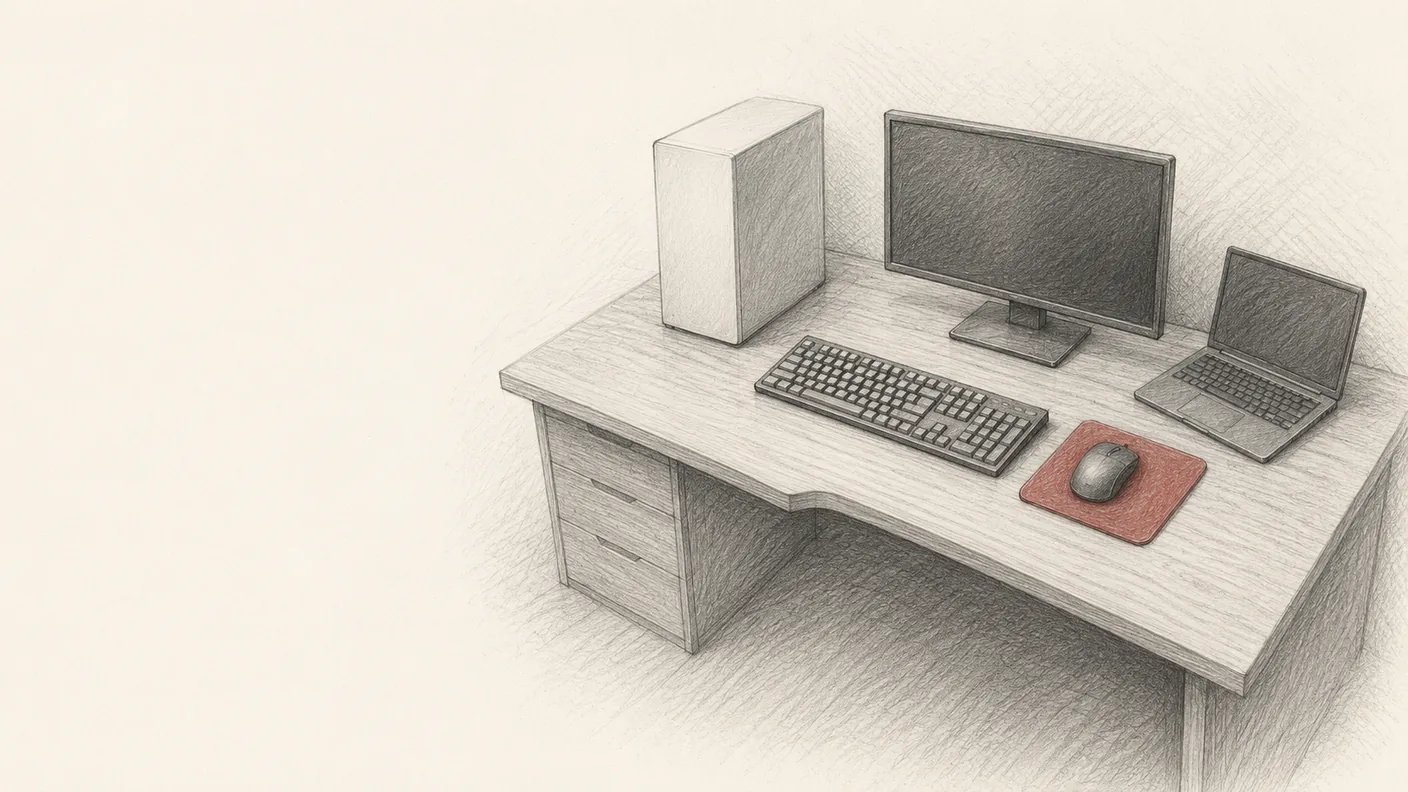
Building llama.cpp from source on a Dell Precision T5820 with an RTX 3090 Ti (after seven power cycles)
In shortSeven BIOS power cycles is what it took before the T5820 would POST with a 3090 Ti in it, and the fix was simply to stop aborting on cycle four. The firmware is retraining the PCIe link on its own schedule, so slot moves and BIOS flags do nothing. With a q4_0 KV cache the $700 card holds 262,144 tokens of context in 21.3 GiB at 39 tok/s. Leave off --jinja and llama-server silently drops your tools parameter.
I pulled a Quadro M4000 out of a used Dell Precision T5820, dropped in an RTX 3090 Ti, and turned the box into a homelab inference node running Qwen3.6-27B at 42 tok/s. Getting there took seven BIOS power cycles before the PCIe link would train. The Dell forum threads and the LLM-generated answers all miss the same thing: the fix is patience.
This post has the working recipe, the from-source llama.cpp build, the 12VHPWR connector physics that nobody explains, and the long-context tricks that let a $700 used GPU serve 262K-token windows on a single 24 GB card. Numbers are from May 2026 against driver 580.142, Qwen3.6-27B Q4_K_M, and llama.cpp at the commit current at publish. Versions in this stack move fast, so treat the specific numbers as a snapshot.
The working recipe
If you landed here from a Dell forum thread and just need the answer:
1. BIOS 2.41 or newer on the T5820. Verify in System Information. 2. Disable Secure Boot, set boot mode to UEFI only, and leave Primary Video on Auto. 3. 3090 Ti in slot 1 (top, CPU lanes) or slot 4 (also CPU lanes). Slot 1 is x8 on a Xeon W-2223 build and slot 4 is x16, but PCIe Gen3 x8 does not bottleneck a single GPU inference workload. Pick on clearance. 4. 12VHPWR seated until you hear the latch click. Three separate PSU cables to the 3-to-1 adapter. Y-splitters and pigtails are a fire hazard at 450 W, so all three 8-pin inputs need to be populated from three independent rails. 5. Both PSUs powered before you press the Dell power button. If you are running dual-PSU, bring up the GPU PSU first. 6. First boot may power-cycle five to seven times before POST. Do not abort early. The BIOS is retraining the PCIe link. 7. After Linux boots, sudo apt install nvidia-driver-580, reboot, then verify with nvidia-smi.
Step 6 is the step most forum advice skips.
Fixing this kind of thing in your own homelab? I send these write-ups by email.
Building llama.cpp from source for the 3090 Ti
For a single-user 24 GB box, the right answer is to build llama.cpp from source against your exact GPU compute capability. Ollama, Docker images, and prebuilt binaries all lag on features and hide tuning flags. Building from source picks up upstream improvements the same day they land, runs faster on this hardware, and gives you access to every knob.
git clone https://github.com/ggml-org/llama.cpp ~/llama.cpp
cd ~/llama.cpp
cmake -B build -DGGML_CUDA=ON -DCMAKE_CUDA_ARCHITECTURES=86 -DLLAMA_CURL=ON
cmake --build build --config Release -j$(nproc)
86 is sm_86, Ampere, the 3090 Ti’s compute capability (same number for the regular 3090). Build takes about fifteen minutes on eight threads, with CUDA kernel codegen (nvcc, ptxas, cicc) doing most of the work. Subsequent rebuilds are quick if you set up ccache before the first build.
Pull a model and start the server:
huggingface-cli download unsloth/Qwen3.6-27B-GGUF Qwen3.6-27B-Q4_K_M.gguf --local-dir ~/models
~/llama.cpp/build/bin/llama-server
  -m ~/models/Qwen3.6-27B-Q4_K_M.gguf
  -ngl 99 --host 127.0.0.1 --port 8080
  -c 8192 --jinja
That gives you an OpenAI-compatible API on localhost:8080. -ngl 99 puts all layers on the GPU and --jinja is mandatory if you want tool calling to work, which is covered in its own section below. At this baseline configuration the box uses 17.3 GiB of VRAM and serves Qwen3.6-27B Q4_K_M at 42 tok/s on a 200-word generation, with 86% GPU utilization and 445 W under load.
The seven-power-cycle install diary
Order matters, so here is what actually happened.
1. Fresh Ubuntu 25.10 install on the box, SSH access via Tailscale. 2. lspci saw only the Quadro M4000 (PCH-attached, x4) on bus 04. The 3090 Ti did not enumerate, both CPU PCIe root ports were empty, and the card was inert with no fan twitch on power-on and no LED. 3. False lead. I assumed PSU sequencing was the issue, pulled the card to the bench, and jumped PS_ON on the 1 kW supply. The card stayed inert. Twenty minutes in I remembered that most retail Add-In Board (AIB) cards refuse to light or spin until they are seated in a PCIe slot, which makes bench tests unreliable for “is the card alive” checks on Ampere-class GPUs. 4. Real cause: the 12VHPWR connector was loose. I reseated it firmly until it clicked, the card LED lit up, and it was alive. 5. Installed in slot 1 of the T5820, powered up the GPU PSU first, then pressed the Dell power button. 6. Boot loop. The box power-cycled four, five, six, seven times before settling into another black screen with no SSH, and I aborted. 7. Searched Dell forums and LinusTechTips and found multiple unresolved threads. Dell’s official guidance qualifies the RTX 3090 for slots 2 and 4 of the T5820, the two x16 CPU slots. 8. Tried slot 4, same boot-loop pattern, aborted again. 9. Pulled the M4000 entirely and booted to BIOS on the 3090 Ti to confirm Secure Boot disabled, UEFI only, Primary Video on Auto. The BIOS 2.41 System Setup screen does not expose a user-facing toggle for memory-mapped I/O (MMIO) above 4 GB on this revision, and the firmware appears to handle the mapping automatically. 10. Reinstalled in slot 1 (more clearance for the 3.5-slot girth than slot 4, accepting the x8 lane drop). The boot loop returned, but this time I waited instead of aborting and the box POSTed cleanly on the seventh cycle. SSH came back. lspci showed 0000:b3:00.0 GA102 [GeForce RTX 3090 Ti] [10de:2203] on a CPU root complex, which is what was supposed to happen all along. 11. Installed nvidia-driver-580 via apt, rebooted, and nvidia-smi came up clean.
Why this is not a software fix
The BIOS gets there or it doesn’t, and on a fresh install with a high-power GPU it takes more attempts than feels reasonable. The Dell community threads stay unresolved because the resolution lives in the firmware’s PCIe link-training routine, which runs on its own schedule. Once you understand that, the right move is to wait.
The fixes that don’t work (and why the forums keep recommending them)
Every Dell community thread I read in the BIOS 2.41 era, every LLM-generated answer I asked for, and every YouTube tutorial in the first two pages of results converges on the same four pieces of advice. None of them matched what I was seeing on this build. They are worth naming, because if you are debugging this in the moment, you will burn an hour on each before you give up.
The 10-pin CPU2 to 8-pin adapter
This is a real Dell part, and on a build where the GPU draws power from the workstation’s stock 950 W supply it does matter. Once you put the 3090 Ti on a separate dedicated PSU (which you should, given the 450 W thermal design power, or TDP), the CPU2 adapter becomes irrelevant because the GPU is no longer pulling from the Dell rail at all.
Above 4G Decoding in BIOS
The toggle is not in my BIOS 2.41 System Setup, and on this revision the firmware appears to handle MMIO above 4 GB automatically. The screenshots in those forum threads are from older Dell consumer BIOSes or other workstation lines, so if your firmware does expose the toggle, leave it on. The qualification doesn’t break anything either way.
Use slot 2 or slot 4, not slot 1
All three options are CPU lanes (slots 2 and 4 at x16, slot 1 at x8 on Xeon W-2223 builds), and the practical difference for a single-GPU inference workload is negligible because PCIe Gen3 x8 is not the bottleneck. I tried slot 1 first, hit the boot loop, moved to slot 4 because that’s what the table said, hit the same boot loop, and went back to slot 1 because it has more clearance for the 3.5-slot girth. Slot choice was a dead end.
Deep power reset (hold the power button for thirty seconds)
This drains residual charge from the PSU capacitors and addresses stuck power states, which is a real failure mode for some hardware but the wrong diagnosis here. The boot loop is the BIOS taking multiple cycles to negotiate PCIe link training with a card outside its qualification database, and holding the power button is harmless against that but also does nothing to speed it up.
The link-training cycles run on firmware time, and every shortcut the forums recommend (BIOS flags, adapters, slot moves) leaves that time unchanged. If the card is seated correctly and the power is right, stop aborting after cycle four and let it run to seven. The forum threads stay open because most people abort before the BIOS finishes.
12VHPWR: the connector that fails silently
The 16-pin 12VHPWR connector is its own category of pain, and most write-ups about 3090 Ti, 4090, or 5090 problems are downstream of it. The Founders Edition adapter that ships with most cards is a 3-to-1 setup where three 8-pin PCIe inputs collapse into a single 16-pin output that plugs into the GPU. Three rules the marketing material does not stress:
1. All three 8-pin inputs need to be populated from three separate PSU rails with three separate cables. Y-splitters and pigtails are a fire hazard at 450 W. The 2023 CableMod recall covered angled adapters where the connector could shift loose under cable tension, but the underlying physics (partial contact at 35-40 A) is the same failure mode you create when you split rails or share them. 2. The 12VHPWR latch needs to audibly click. A connector seated 95% of the way will pass continuity tests, fail under load, and on some cards melt the connector housing. The audible click is the only reliable signal, so push until it clicks. If it does not click, the card is not seated. 3. The card will not light on the bench. Ampere-generation cards keep the fans and the LED off until they are seated in a PCIe slot, so you cannot validate “is this card alive” by jumping PS_ON on the PSU and looking for fan spin. The card has to be installed.
The third rule cost me the most time. I pulled the card to the bench, jumped PS_ON, watched it sit dark and inert, and concluded the card was DOA. It was fine all along, just waiting for a slot before it would wake up.
262K context on a single 24 GB card
This is the upgrade nobody mentions in the homelab threads. The 8 K baseline is what the recipe ships with, but Q4 KV cache and flash attention rewrite the memory math entirely.
~/llama.cpp/build/bin/llama-server
  -m ~/models/Qwen3.6-27B-Q4_K_M.gguf
  -ngl 99 --host 127.0.0.1 --port 8080
  -c 262144
  -fa on -ctk q4_0 -ctv q4_0
  --parallel 1
  --jinja
Qwen3.6-27B Q4_K_M holds 262,144 tokens of context on a single 24 GB 3090 Ti at 39 tok/s eval and 86 tok/s prompt processing. VRAM use sits at 21.3 GiB with 2.7 GiB headroom against the 24,564 MiB cap, which is 3 tok/s slower than the 8K baseline and rounding error for most workloads.
KV cache type is what makes this possible. Most setups leave KV at fp16 default, or push it to q8 thinking “more bits equals more quality.” On Qwen3.6-27B dense at 262 K context:
| KV cache type | VRAM at 262K | Throughput |
|---|---|---|
fp16 | does not fit | n/a |
q8_0 | 23 GiB (just fits) | extrapolated ~3x slower from 96K measurement |
q4_0 | 21.3 GiB | 39 tok/s |
I verified the q8 trap on this rig at the context length where I could measure it directly. At 96 K context I observed a 23% throughput hit on the q4 to q8 swap, which dropped from 39 tok/s to 30 tok/s. The penalty scales with context length because more KV cells means more per-token dequant work. The 3x slowdown at 262 K is an extrapolation from that scaling rather than a head-to-head measurement, since q8 barely fits at 262K and I did not push a long run through it. Either way, the direction is consistent: q8 KV is a trap on consumer 24 GB hardware.
A couple of tradeoffs worth flagging:
--parallel 1is a single slot, which is fine for solo use. Concurrent users will queue, which is rarely what you want.- KV cache quality at q4 over very long contexts is empirically untested for this model. Long-document recall could degrade in ways that throughput numbers will never show, so a needle-in-haystack pass is a precondition for trusting this configuration for real long-document work.
Hobbyist-tier hardware can now serve frontier-tier context lengths if you accept single-user throughput. A $700 used 3090 Ti running 262 K context locally breaks even against Claude Sonnet’s $15/M output pricing after about two weeks of pegged inference. Add roughly $18 of electricity during those two weeks at $0.12 per kWh, or about $39 a month if you keep the card pegged. The ceiling shifted, and most homelab write-ups have not caught up.
For comparison, as measured on my Mac Studio M2 Max with 32 GB unified memory, MLX 1.6.0 runs Qwen3.6-35B-A3B (UD-Q4_K_XL, 35B total / 3B active per token) at 49 tok/s on a 32K context window. That is roughly the same throughput as the 3090 Ti on dense Qwen3.6-27B at 39 tok/s, with a smaller context ceiling and a larger model. The mixture-of-experts (MoE) bandwidth-divided-by-active-params speedup math (3B active / 400 GB/s) does not translate cleanly at Max-class memory bandwidth, since the headline MoE wins live on M-Ultra (800 GB/s) and leave Studio Max behind.
The silent OOM: context checkpoints and prompt cache
Two runtime allocations can add up to 19 GiB on top of the model and don’t appear in the static VRAM math everyone publishes. Context checkpoints and the slot prompt cache absolutely show up at peak load, and the failure mode is silent.
Context checkpoints (-ctxcp or --ctx-checkpoints) cache intermediate KV states so the server can rewind without reprocessing the prefix. The default is 32 per slot. Each checkpoint on Qwen3.6-27B runs roughly 150 MiB, so 4 parallel slots × 32 checkpoints × 150 MiB gives a worst case of 19 GiB on top of the model. That is not headroom anyone is publishing about.
Slot prompt cache caches recent prompts (default 8 GiB limit) so reused prefixes skip reprocessing. Invisible in the “model plus KV” math, very visible at peak.
A 128 K q8-KV configuration typically reports 21 GiB at startup with 3 GiB free and runs fine for a dozen short turns, until a long context-heavy turn lands. The checkpoint cache spikes 4-5 GiB, the prompt cache takes another 2-3 GiB, and the server dies with cudaMalloc failing on the next 200 MiB allocation. The log shows happy request handling and then srv operator(): cleaning up before exit... followed by silence, with no OOM trace and no backtrace. The CUDA layer just quits.
Two flags neither tutorial mentions will fix this. -np 1 collapses the parallel slot pool to one (the pool is just an OOM multiplier on every per-slot cache when you are the only user), and -ctxcp 4 caps context checkpoints at 4 per slot, which drops that allocation from 4.8 GiB to 600 MiB. With both caps plus q4 KV at 128 K context, the configuration holds at 18.6 GiB used and 6 GiB free across long-context sessions. Without them, the same flags die on the first long-prompt turn.
If your llama-server “randomly” dies under load and the log tail shows cleaning up before exit with no error, you are probably hitting this. Watch GPU memory during a real workload rather than only at startup, since startup numbers underreport the peak by several GiB.
Why your tool calls are hallucinating: the –jinja flag
Add --jinja to the llama-server launch command. Without it, llama-server falls back to a C++ template path that silently drops the tools parameter before the model ever sees the request, so any request that depends on tool schemas behaves as if no tools were declared. I verified this with a direct curl. Same weights, same prompt, flag on versus off: with the flag off the model roleplayed the tool call as plain text, and with the flag on it returned a proper tool_calls array. One server flag, entirely different observable behavior.
To confirm the flag is doing what it should, grep the launch command for --jinja and check the log for chat template, thinking = 1. If the template line shows but the flag is absent, that is the bug.
A related Qwen3-specific gotcha. The /no_think sentinel as a system-prompt string is silently ignored by Qwen3.6-27B, and the working lever is chat_template_kwargs.enable_thinking=false in the request body. The intuitive next move (“turn off thinking on leaf subagents to save time-to-first-token”) does not survive a controlled test. I ran 24 trials of parent-with-thinking vs subagent-without across two task types, both modes always hit max quality, and thinking-ON was consistently faster end-to-end. The intuition was noise. A <a href=”https://ianlpaterson.com/blog/3090-ti-qwen-speedup-dflash-mtp/”>separate post on speculative decoding</a> covers that bench in detail. For this article, leave thinking on for both roles and add --jinja.
The numbers in one place
| metric | value |
|---|---|
| GPU | RTX 3090 Ti, GA102, sm_86, 24,564 MiB |
| Model | Qwen3.6-27B Q4_K_M (unsloth GGUF) |
| Throughput at 8K context | 42 tok/s eval |
| Throughput at 262K context | 39 tok/s eval, 86 tok/s prompt |
| VRAM at 262K context | 21.3 GiB used, 2.7 GiB headroom |
| Q4→Q8 KV penalty at 96K | 23% throughput hit (39 → 30 tok/s) |
| Power under load | 445 W, 86% GPU util, 57°C |
| Idle, no model loaded | 32°C, 10 W |
| Idle, model resident at P8 | 50°C, 26 W |
| Cold boot to first POST | 7 BIOS power cycles |
| Build time, llama.cpp from source | ~15 min on 8 threads |
FAQ
Will a Dell Precision T5820 accept an RTX 3090 Ti?
Yes. Dell qualifies the 3090 for slots 2 and 4 (the x16 CPU slots), but slot 1 works just as well on the x8 lanes. PCIe Gen3 x8 does not bottleneck single-GPU inference, so the slot choice comes down to clearance rather than throughput. The card is a 3.5-slot girth, so slot 1 has the most physical clearance. Run the 3090 Ti off a separate dedicated PSU rather than the Dell 950 W stock supply, because the Dell rails are not designed for the 450 W transient spikes the card pulls on the 12 V line.
Why does my Dell Precision boot-loop with a new GPU?
The BIOS is retraining the PCIe link with a card that is outside its qualification database. On BIOS 2.41 with a 3090 Ti in a fresh install, five to seven power cycles is normal. The official advice (10-pin CPU2 adapter, Above 4G Decoding, slot 2/4, deep power reset) does not change the outcome, so the correct response is to let the system cycle until it POSTs.
At what point should I give up and assume the boot loop is a real fault?
Ten cycles without POST is my own abort threshold. Beyond that, check 12VHPWR seating first (audible latch click), then PSU rail integrity (continuity test on each 8-pin input from the wall to the adapter), then try a different slot. If all three pass and it still loops on a fresh install, you may have a genuine PCIe fault or a card with degraded power delivery, which is a return-to-vendor situation.
Is the T5820 950 W PSU enough for a 3090 Ti?
Technically yes, but practically you want a separate PSU for the GPU. The Dell stock supply has the cable connectors, but the 12 V rail was not designed for the 450 W transient spikes the 3090 Ti pulls under load. A dedicated 1 kW supply with PS_ON jumped to ground costs about $80 and removes the entire failure class. (PS_ON is the green wire on a 24-pin ATX connector. Tied to a black ground, it tells the PSU to stay on without a motherboard.)
What is sm_86 in the CUDA build command?
sm_86 is the compute capability identifier for Nvidia’s Ampere generation, which covers the RTX 3090, 3090 Ti, A40, A100, and a few others. The -DCMAKE_CUDA_ARCHITECTURES=86 flag tells nvcc to generate kernels for that target only, which keeps build time down and avoids fat-binary bloat. 4090 owners use 89, H100 owners use 90.
**What does -ngl 99 do in llama-server?**
-ngl is the number of model layers to offload to the GPU. Setting it to 99 means “all of them,” since no current model has more than 99 layers, so the entire model lives in VRAM. Lower numbers split the model between CPU RAM and VRAM, which costs throughput badly. On a 24 GB card with a 27B Q4 model, 99 fits comfortably and there is no reason to do anything else.
Where is the Above 4G Decoding toggle on a Dell Precision T5820?
Not in BIOS 2.41 System Setup as a user-facing toggle. On this revision the firmware appears to handle MMIO above 4 GB automatically. Older Dell consumer BIOSes and other workstation lines expose it, which is what the forum screenshots are showing. If your firmware does expose it, leave it on, since the qualification does not break anything either way.
llama.cpp vs Ollama on a 3090 Ti, which should I run?
llama.cpp from source is the right call for single-user latency and tuning headroom. Ollama works fine for a “just works” start, but it ships pre-built binaries that lag on features, wraps llama.cpp anyway, and hides flags like --jinja, -ctk, and -ctxcp that materially change throughput and VRAM behavior on a 24 GB card. Build llama.cpp yourself and you get the same backend and every knob.
What’s left on this box
nvidia-smi -pl 350power-limit to drop heat with a marginal throughput cost. The card is still running at the 450 W default.- vLLM comparison on the same model. llama.cpp wins on single-user latency. vLLM should win on batched throughput, so it is worth measuring.
- RAM upgrade in transit. 16 GB is anemic for a Skylake-W board, so 4×32 GB RDIMMs are ordered to take the C422 chipset to its quad-channel ceiling.
A note for anyone copying this verbatim: my production unit since this writeup has swapped the vanilla build/bin/llama-server for the MTP branch (build-mtp/bin/) with --spec-type mtp for speculative decoding, and the bind moved from 127.0.0.1 to 0.0.0.0 so a separate agent host on the Tailscale mesh can reach it. The recipe above is still the right starting point, and the companion post on DFlash vs MTP benchmarks covers the swap in full detail.
For the so what do I actually run on this box
question, see the Inference Arbitrage write-up, which covers how I route calls across this box, Mac Studio, and cloud frontier models based on task type and cost.
Companion post: for the speculative decoding benchmarks on this build (DFlash vs MTP, decode rates across output lengths, lossless probe results), see Three Months of Speed-Up Experiments on a 3090 Ti.
Companion post: when I later swapped a GPU into this kind of homelab box, a clean boot and a respectable token rate nearly fooled me into benchmarking a build compiled for the old card. See Why Your llama.cpp Benchmarks Are Wrong for the GPU-swap rebuild trap.
Sources
- Dell Community: Precision 5820 with RTX 3090 boot loop: unresolved
- Dell Community: Anyone running a 3090 Ti in a 5820: speculative, no working fix
- Dell Community: 5820 boot loop when Tesla P100 installed: same pattern, different GPU
- Dell Precision 5820 Owner’s Manual, PCIe slots: slot lane assignments
- keturk/llm_on_rtx_3090: closest competitor (Ubuntu + Docker + Ollama, does not address the boot loop)
- llama.cpp: primary upstream
How a CEO uses Claude Code and Hermes to do the knowledge work
A blank or generic config file means every session re-explains your workflow. These are the files I run daily as CEO of a cybersecurity company managing autonomous agents, cron jobs, and publishing pipelines.
- CLAUDE.md template with session lifecycle, subagent strategy, and cost controls
- 8 slash commands from my actual workflow (flush, project, morning, eod, and more)
- Token cost calculator: find out what each session is actually costing you
One email when the pack ships. Occasional posts after that. Unsubscribe anytime.